


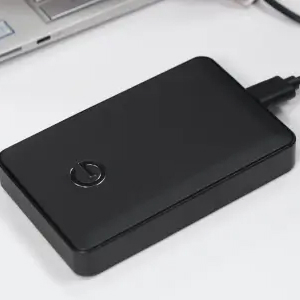
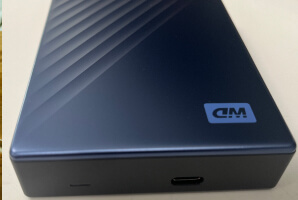
An external hard drive not showing up on Mac can be a stressful experience. Especially if your Mac isn’t recognizing an external hard drive with personal data, precious memories, or project files.
Thankfully, a simple issue often prevents macOS from displaying the volume, even if it detects the hardware.
As an Apple Authorized Service Provider, Secure Data Recovery uniquely understands these failure types. Follow the steps below to diagnose the problem and learn how to fix an external hard drive not showing up on Mac.
On a PC? We also have a guide for an external hard drive not showing up in Windows.
Quick Answer:
- Disconnect your external drive if it’s clicking, beeping, or dropping out of Disk Utility. Forcing a damaged drive to run can cause permanent data loss.
- Allow accessories to connect and confirm that external disks are enabled in Finder settings.
- Show all devices in Disk Utility and mount any grayed-out volumes.
- Check System Information or Terminal for possible hardware failure.
- If you’re worried about stored data, you can always request help for a free evaluation from our Mac experts.
Why Is My External Hard Drive Not Showing Up on Mac?
Here are the five most common reasons why your external hard drive isn’t showing up on your Mac:
- Loose connections, broken ports, or power issues
- Default macOS permissions
- External disks hidden in Finder settings
- Unmounted volume or unsupported file system
- Physical damage or logical error with external device
Most of these conflicts can be easily resolved within minutes. Cases involving external hard drive failure will likely require professional assistance to retrieve data from the disk.
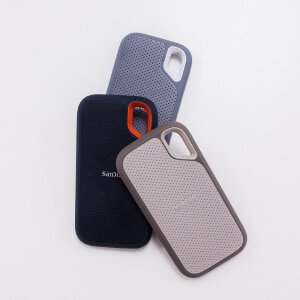
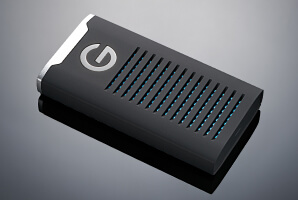
Identifying the problem can help you choose the best troubleshooting approach. Each fix applies to both an external hard disk drive (HDD) and solid-state drive (SSD).
Before You Start: Protect Your Files
Sometimes, your Mac displays an error message about an external drive it doesn’t recognize. The prompt says: “The disk you attached was not readable by this computer.” It also gives you the option to Eject, Ignore, or Initialize to make the disk readable.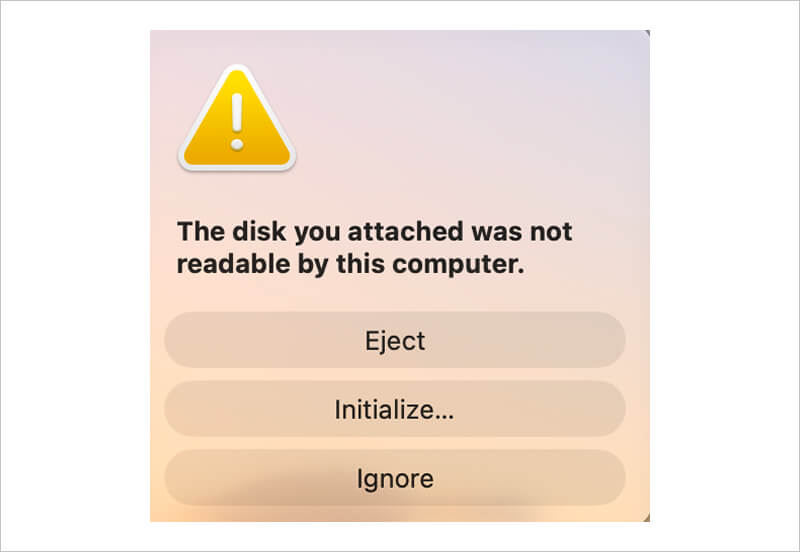
Clicking Eject lets you safely remove the device from your Mac. Choosing Ignore keeps the external drive connected but does nothing else. Clicking Initialize opens Disk Utility to erase the storage device's logical structure.
Don’t click Initialize if you need data on the drive. Erasing it overwrites the partition map and replaces the old file system. As a result, your saved files won’t have an index that points to their location on the media.
For an external SSD in particular, wiping the file system could permanently delete data. This occurs because macOS instructs the SSD to purge unused blocks of data from its NAND flash memory cells to optimize performance.
Avoid initializing the drive if your data matters more than the hardware.
Step 1: Listen for Abnormal Sounds
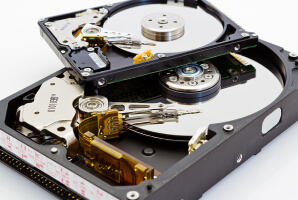
Your storage device should not make abnormal sounds. Harsh noises, such as hard drive clicking or beeping, are reliable signs of mechanical failure and physical damage. Failed read/write heads and damaged platters will never improve with time.
Shut down the external HDD as soon as possible to protect data on the disk. The risk of catastrophic data loss only rises with each spin.
In contrast, external SSDs don’t make clicking or grinding sounds. A rattling noise near a portable SSD could be a computer fan.
Step 2: Check Your Connections
A bad cable, faulty adapter, or power issue could prevent a Mac from detecting an external drive.
One of the easiest fixes is to try a different cable to see if your Mac recognizes the drive.
Also, plug the external hard drive directly into your desktop or laptop. A hub, dock, or multi-port dongle can split power and interfere with the connection between the device and your Mac.
Ensure that you connect the drive to the right port. An external hard drive will work with a USB-C or Thunderbolt port. Some external SSDs may require a Thunderbolt port, which older Mac desktops and MacBooks lack.
Modern MacBooks only have Thunderbolt ports. If your external drive has USB-A connectors, you will need a USB-A to USB-C adapter.
Lastly, try connecting the external drive to a different Mac, if available.
Step 3: Find Why Your Mac’s Not Recognizing the External Hard Drive
Your Mac might detect the external hard drive, but not show it within macOS. Finding the portable drive across your Mac’s hardware and software layers can help you diagnose the problem and find a solution.
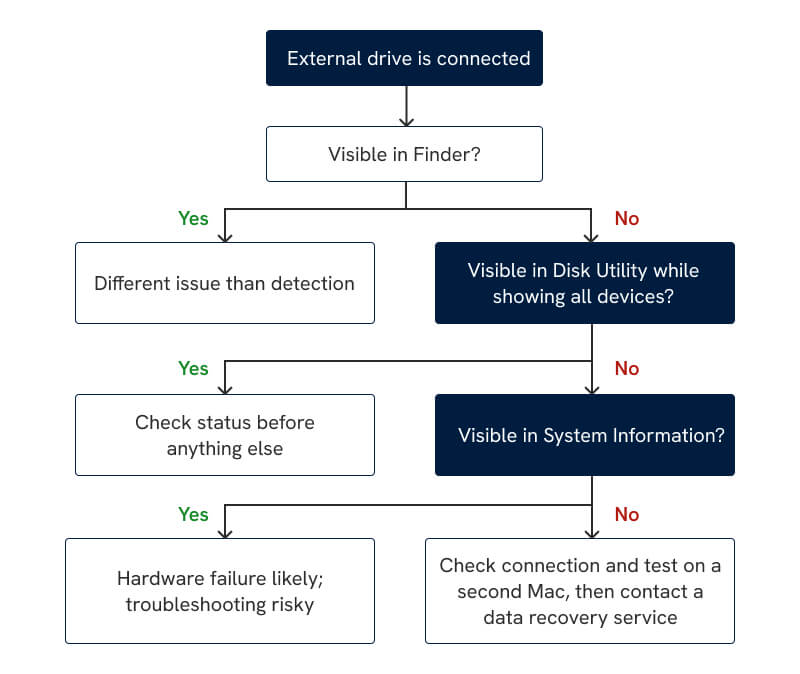
Follow this path to troubleshoot an external device your Mac doesn’t recognize.
External Hard Drive Not Showing Up in Finder
To see if your external drive shows up in Finder:
- Click the Finder icon in the Dock.
- Look under Locations in the Finder sidebar.
If your Finder settings are fine and the drive is still missing, Disk Utility can often provide more info.
External Hard Drive Not Showing Up in Disk Utility
To see if your external drive shows up in Disk Utility:
- Type Disk Utility in Spotlight Search.
- Click View along the top menu.
- Choose Show All Devices in the drop-down menu.
Check for your external drive in the app’s sidebar.
If an external device doesn’t show up in Disk Utility, there's one more place to check.
External Hard Drive Not Showing Up in System Information
To see if your external drive shows up in System Information:
- Hold the Option key and click the Apple icon in the Menu Bar.
- Open System Information.
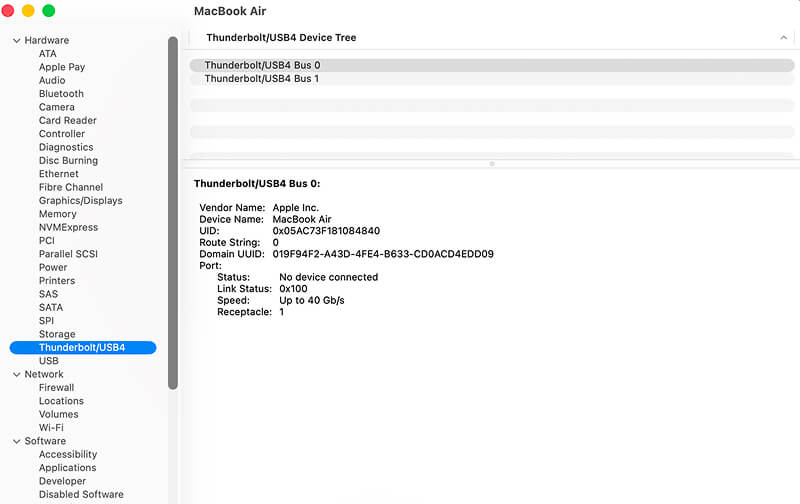
- Click Thunderbolt/USB4 under the Hardware section of the sidebar.
Look for the external drive or USB enclosure in the port status box.
A visible drive with clearly lower speeds may indicate a defective cable or adapter.
A drive that appears only in System Information could mean your Mac sees the enclosure but not the disk itself. An external drive that doesn’t show up in System Information at all is an ominous sign.
In either case, hardware failure is the most likely cause.
Step 4: Fix Mac External Hard Drive Not Showing Up
Now, it’s time to fix what you found.
Allow Accessories to Connect (Apple Silicon Macs)
When to do: You clicked Don’t Allow by accident when prompted by macOS.
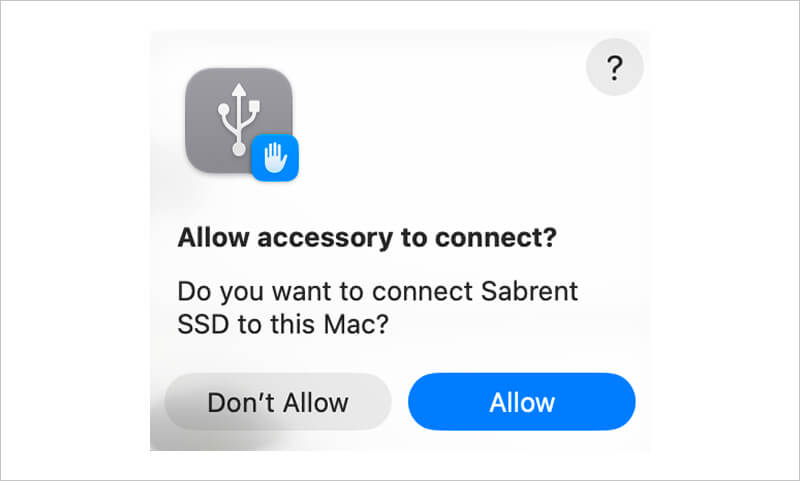
Mac computers with Apple silicon chips must allow accessories to connect.
Disconnect the external hard drive from your Mac. Plug it back in and allow the device to connect.
The external HDD should be visible in Finder after approving it.
When to do: Your Finder settings are hiding external disks.
Some users hide external disks in Finder and forget to change the settings before connecting their device.
- Launch Finder from the Dock.
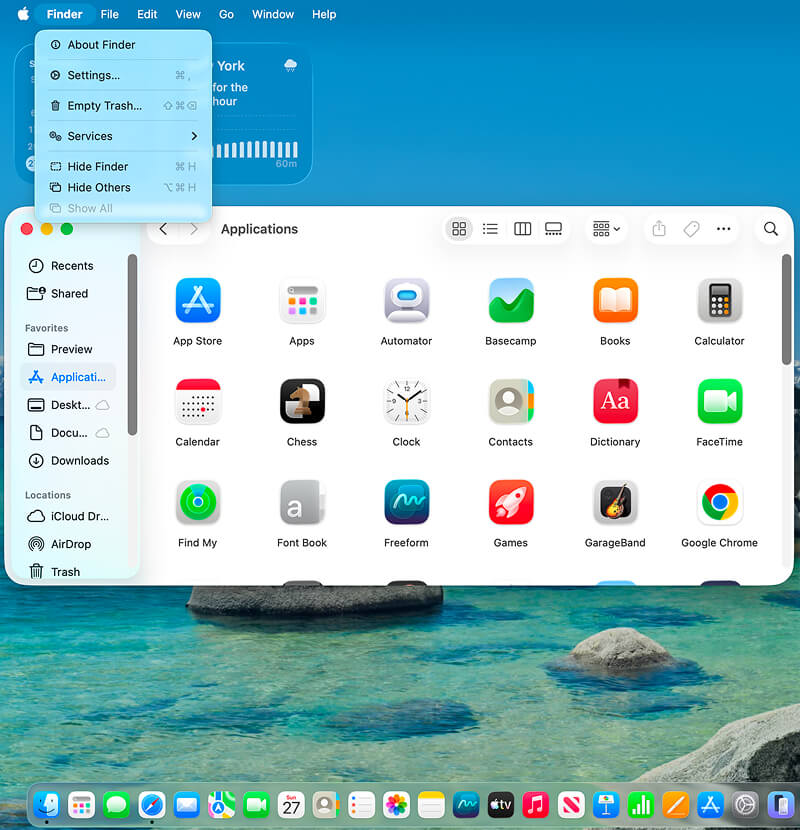
- Click Finder in the Menu Bar.
- Choose Settings.
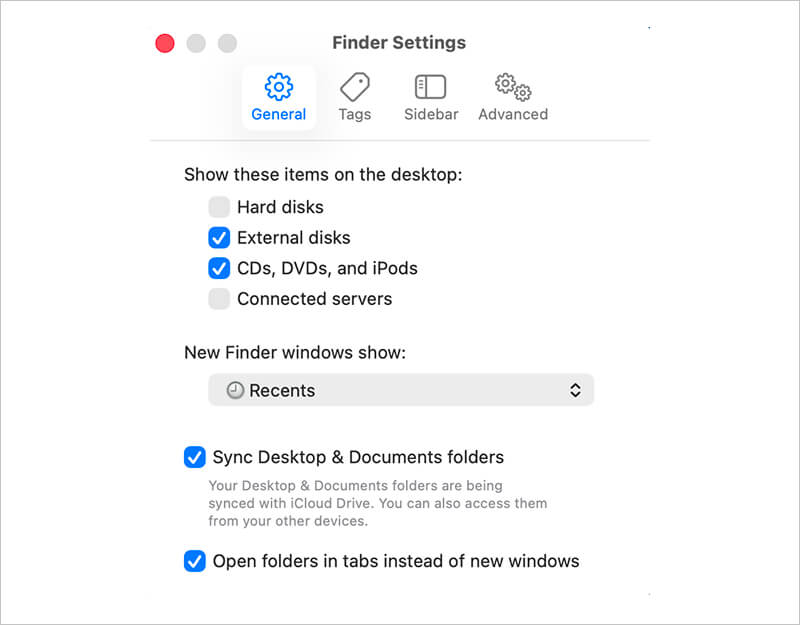
- Confirm that External disks are enabled in the General tab.
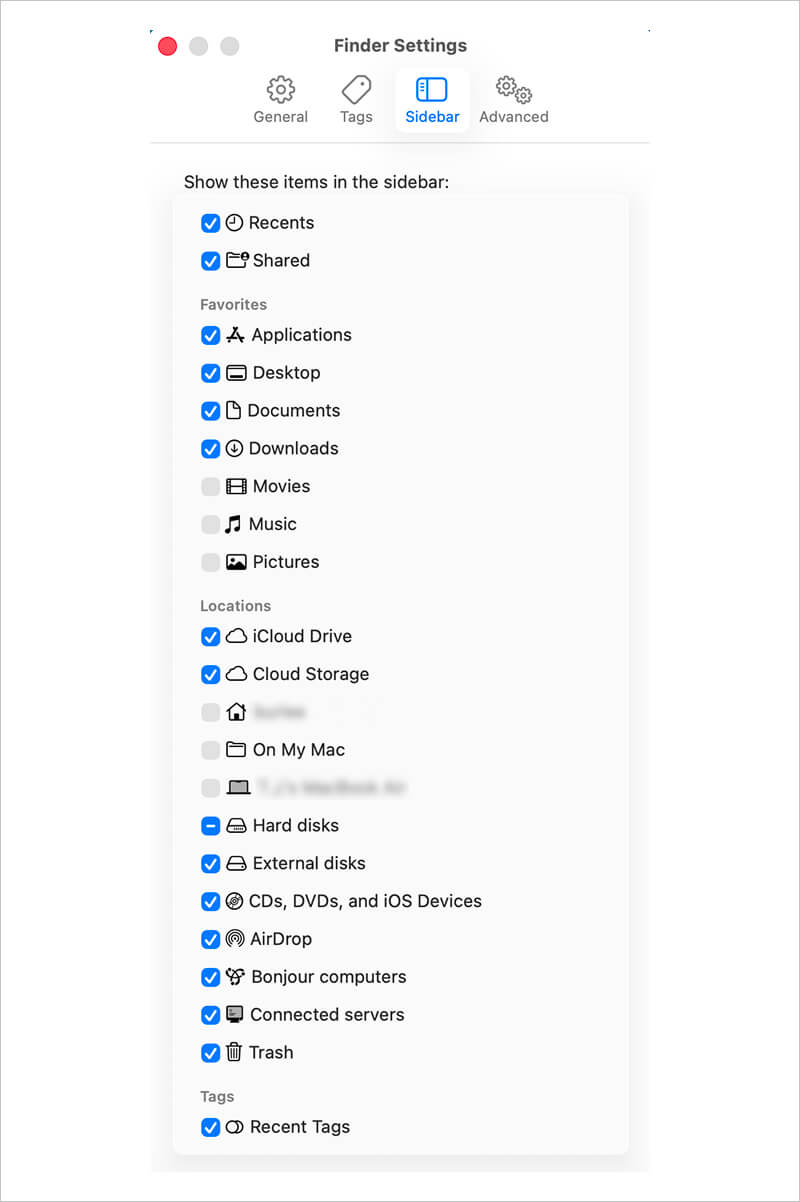
- Confirm that External disks are enabled in the Sidebar tab.
Once finished, check to see whether the disk appears in Finder.
When to do: Whenever you intend to fix an external drive issue in macOS.
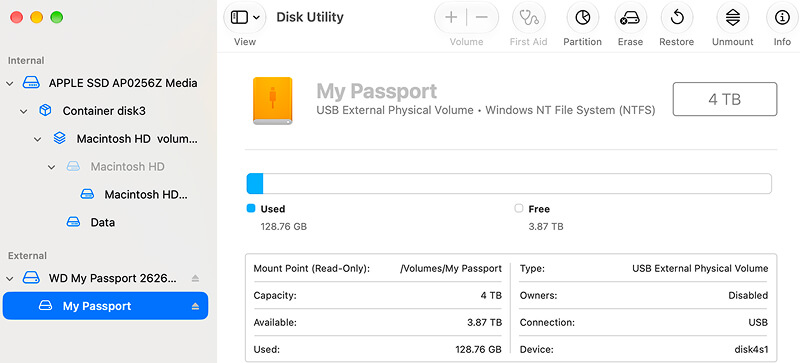
What Disk Utility tells you about the device matters. For example, the above screenshot shows an external drive as read-only because of its NTFS format.
The table below explains what each error message or status in the info panes means.
Decline prompts that ask to format or repair the external drive if you have important data on the media. You will need to retrieve files on the disk that aren’t backed up before formatting or scanning the device.
Don’t force a fix if Disk Utility shows an abnormal status or repeated errors.
Not sure what to do? Our specialists can provide SSD or hard drive data recovery for your Mac’s external device. Contact us for a free consultation.
Mount Volume in Disk Utility
When to do: You need to integrate a healthy external drive into the Mac’s folder structure.
To mount an external drive in Disk Utility:
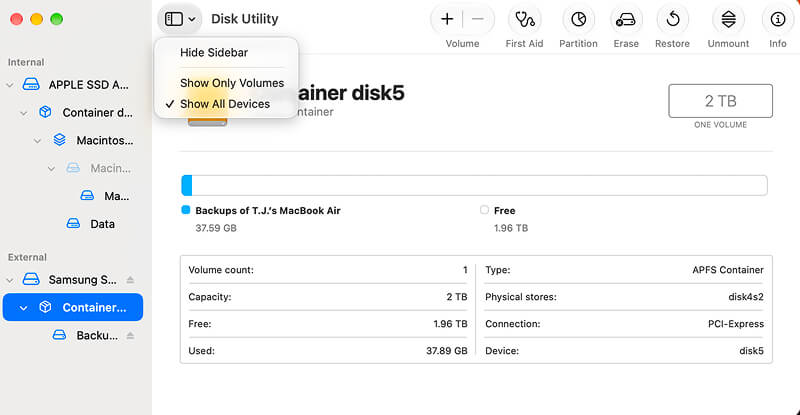
- Click View and select Show All Devices in Disk Utility.
- Choose the grayed-out volume under the model name in the sidebar.
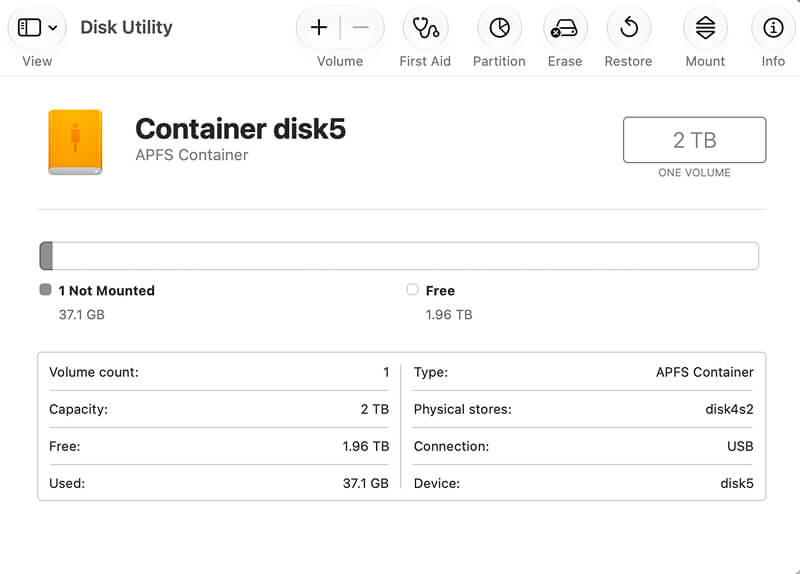
- Click Mount in the app’s menu bar.
- Enter the drive’s passcode if prompted.
If Disk Utility can’t mount the external drive, hardware issues or a logical failure are likely.
Test Detection in Safe Mode
When to do: Your external drive works on a different Mac.
Rarely, your Mac won’t recognize an external hard drive, but another Apple computer will. Those cases suggest a software conflict instead of a hardware problem.
Restarting your Mac in Safe Mode loads only essential components, stripping out third-party software that might impede a connection.
If your external hard drive shows up in Safe Mode, then recently installed software likely prevents detection. Cloud sync apps, NTFS drivers, and security tools are the most common culprits.
To boot a Mac computer with Apple silicon in Safe Mode:
- Shut down your desktop or laptop.
- Press and hold the power button until “Loading startup options” appears.
- Select Macintosh HD (or the system drive, if you changed it).
- Hold the Shift key and choose Continue in Safe Mode.
- Log in to your Mac.
To boot an Intel-based Mac in Safe Mode:
- Restart your Mac while holding the Shift key.
- Release the Shift key when the log-in window appears.
- Log in to your Mac.
You should see Safe Boot across the Menu Bar. Connect the external drive and check Finder and Disk Utility for the device.
If it shows up, open System Settings, click the General tab in the sidebar, and select Login Items & Extension. Remove recently added items to resolve the conflict.
If an external hard drive doesn’t show up in Safe Mode, it points to a disk failure.
Reset the SMC (Intel Macs)
When to do: You have an Intel Mac (pre-2021) and want to rule out an uncommon power issue.
The System Management Controller (SMC) regulates power settings on Mac computers with Intel processors.
Resetting the SMC can sometimes fix an issue where an external hard drive doesn’t show up on older Macs.
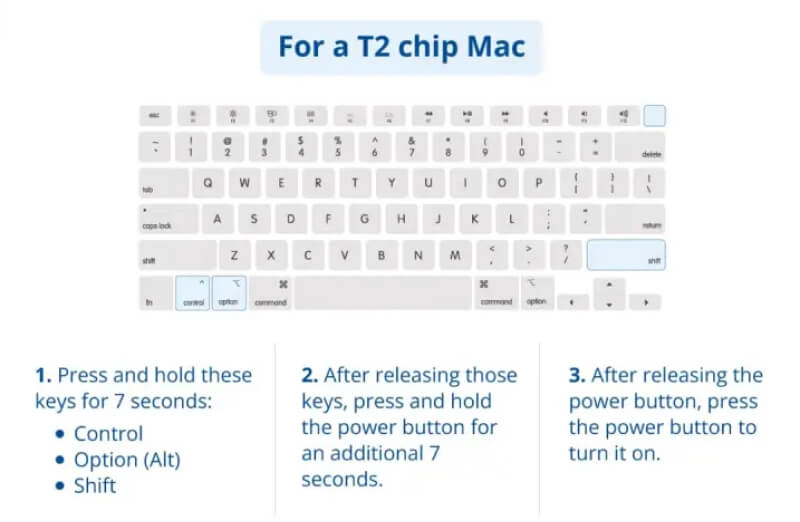
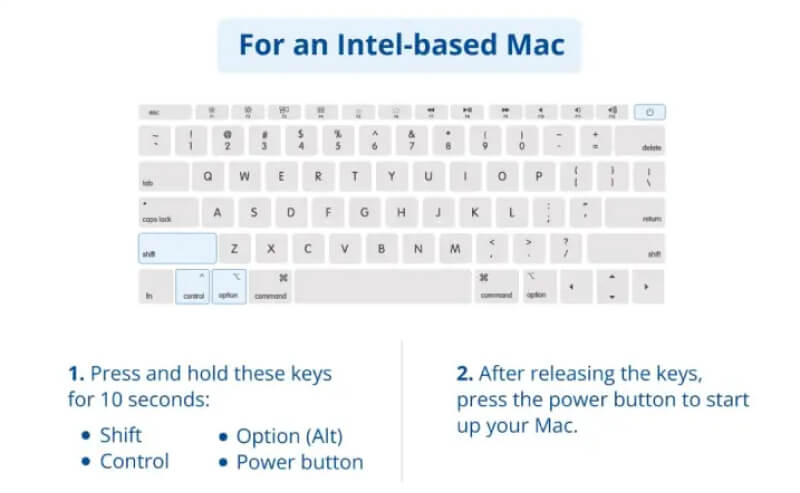
Follow the diagrams above or Apple Support’s guide to reset your SMC.
Run First Aid in Disk Utility
When to do: Your external drive shows no signs of physical damage, contains no critical files, and fails to mount in Disk Utility.
To run First Aid in Disk Utility:
- Open Disk Utility again.
- Select the unrecognized volume in the sidebar.
- Click the First Aid icon at the top of the screen.
- Click Run to confirm.
Your Mac will report the result after the scan is complete.
Successful repairs should restore the connection between the external drive and macOS. If First Aid can’t repair the volume, you will not be able to use the device in its current state.
Mistakes That Make External Hard Drive Recovery More Difficult
Two mistakes complicate external drive data recovery.
First, trying DIY fixes or removing the external drive from its case to insert it into a desktop is dangerous.
Many external drives have a unique printed circuit board (PCB) soldered directly to the device. Without the hardware encryption on that bridge board, you cannot access your data. An engineer with advanced tools and techniques in a state-of-the-art lab offers the best chance for hard drive repair. They have experience with all failure types, from head crashes to firmware damage.
Running data recovery software on an external disk with physical damage or major logical errors is also risky. Most programs cannot handle the typical issues that prevent an external drive from showing up.
Certified Experts To Recover Data From Mac Hard Drive
Secure Data Recovery has Apple Certified Mac Technicians with decades of experience restoring files from thousands of failed external hard drives. We can help you too.
Our Mac data recovery services include external hard drives formatted in APFS, HFS Plus, or exFAT. All work features free diagnostics and a No Data, No Recovery Fee guarantee.
Call 800-388-1266 or complete our form to get a free quote and reclaim your important data.
Frequently Asked Questions
Why does my external hard drive show up in Disk Utility but not Finder?
Often, it means that Finder is hiding external disks. Check your Finder settings to confirm that they are enabled. The drive could also need to be mounted for macOS to display it in Finder. If your model appears in Disk Utility as a grayed-out volume, then select it and click Mount in the menu.
What should I click when my Mac says the disk that you attached is not readable by this computer?
Click Ignore or Eject. Never select Initialize if your external hard drive holds important data. It will open Disk Utility and erase the drive’s current file system. Doing so will delete files stored on the drive.
Is it safe to run First Aid on an external drive?
We do not recommend it. It is safer to run First Aid if your hard drive runs normally, stays connected, shows the correct size, and doesn't store essential files. Meeting every condition is crucial. Otherwise, running First Aid could lead to permanent data loss. Don’t run First Aid again if your Mac reports that it can’t repair the disk.
Yes. You won’t need to use Terminal, but it can help in two cases. If Disk Utility hangs, the diskutil list external command will show connected drives. In addition, diskutil activity will reveal when external drives connect and disconnect. While both commands are read-only, it's still helpful to be familiar with Terminal.
Why can my Mac read data on a Windows drive but not save files to it?
Your Mac can read NTFS (the default file system on Windows), but it can’t write data to these volumes. You will need a third-party driver to support NTFS or save files on an APFS or HFS Plus partition.
How can I keep my external hard drive from disappearing again?
Always eject the external hard drive before unplugging it. Improper ejection can corrupt the drive’s file system. If you don’t intend to use the external disk on Windows PCs, format it in APFS or HFS Plus for better compatibility. Keeping another backup of your data can further reduce the impact of an external hard drive that your Mac doesn’t recognize.

Timothy Burlee

Timothy Burlee is a content writer for Secure Data Recovery Services. He specializes in various topics in the data industry, including data recovery technology, storage devices, and digital forensics. Throughout his career, he has covered complex concepts and provided accessible solutions for users. Before joining Secure Data, he worked as a freelance technical writer.







.png)
