


An external hard drive not showing up in Windows is concerning if the device stores critical files. In many cases, it was just working, and now it’s nowhere to be found.
Often, Windows detects the external hard drive but can’t display it properly. Addressing minor conflicts can frequently resolve the issue in a few minutes.
This guide shows you where to find the external drive in Windows, what each status means, and how to fix it.
On a Mac? See our guide for an external hard drive not showing up on Mac.
Quick Answer:
- Look for the device under This PC in File Explorer.
- If it’s not there, open Disk Management. You can check its status or assign a drive letter if needed.
- Not there either? See if a warning icon appears in Device Manager for disk drives or USB controllers.
- Don’t initialize, format, or troubleshoot an external hard drive with an unusual status.
- Is your external hard drive clicking, beeping, or disconnecting? Shut it down and request help for a free evaluation.
Why Is My External Hard Drive Not Showing Up in Windows?
These are the most common causes for an external hard drive not showing up on Windows PCs:
- Damaged cables
- Defective USB port
- Missing drive letter
- Bad device drivers
- Corrupted file system
- Lost partition table
- Physical damage
Some of these problems have simple solutions. Other failures are more severe and require a specialist to recover data from your external hard drive.
Pinpointing the cause safely and knowing when to stop can save you time and money. Not to mention your files.
Before Troubleshooting: Protect Your Data
Here are three rules for protecting important data on an external hard drive that isn’t showing up:
- Rule 1: Don’t keep trying to fix a device with clear signs of hard drive failure.
- Rule 2: Don’t initialize or format a disk that used to work if prompted.
- Rule 3: Don’t run CHKDSK on a drive with persistent detection issues.
Taking any of these actions could lead to permanent data loss.
Step 1: Listen to the External HDD
Hard drive clicking and beeping signal a serious problem with the spinning disk. These abnormal noises indicate failed read/write heads and platter damage.
Power off and unplug your external hard drive. Continuing to run it will only make the problem even worse.
Step 2: Check Your Connections
Try these quick fixes if your external hard drive doesn’t show up in Windows.
First, use a separate USB cable that you know works. This test rules out broken connectors that could prevent the disk from appearing in Windows.
Next, connect your external drive to a different USB port. For example, rear USB ports can deliver a more stable power supply to connected devices.
Finally, try the external drive on a new desktop or laptop. If you have the same issue on a second PC, it points to a broken hard drive.
Step 3: Find Where Your PC Sees the Drive
Your system sees devices in hardware and software layers. Knowing where the computer detects the disk can tell you why Windows doesn't recognize the external hard drive.
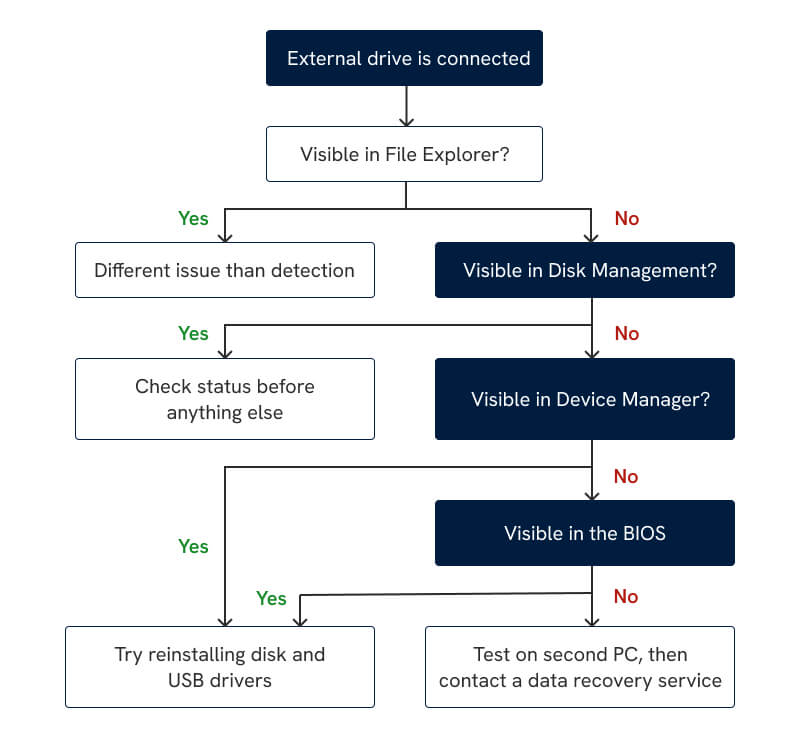
The above diagram visualizes the typical troubleshooting process for a portable hard drive not showing up in Windows.
Can’t See External Hard Drive in File Explorer
To check for your drive in File Explorer:
- Press the Windows key + E together to open File Explorer.
- Search for the device under This PC in the navigation pane.
If it’s listed, Windows recognizes your external hard drive. If it’s not, Windows may detect the drive, but doesn’t know what to do with it. Follow up in Disk Management.
External Hard Drive Not Recognized in Disk Management or Device Manager
To check your drive in Disk Management:
- Right-click the Start icon and select Disk Management.
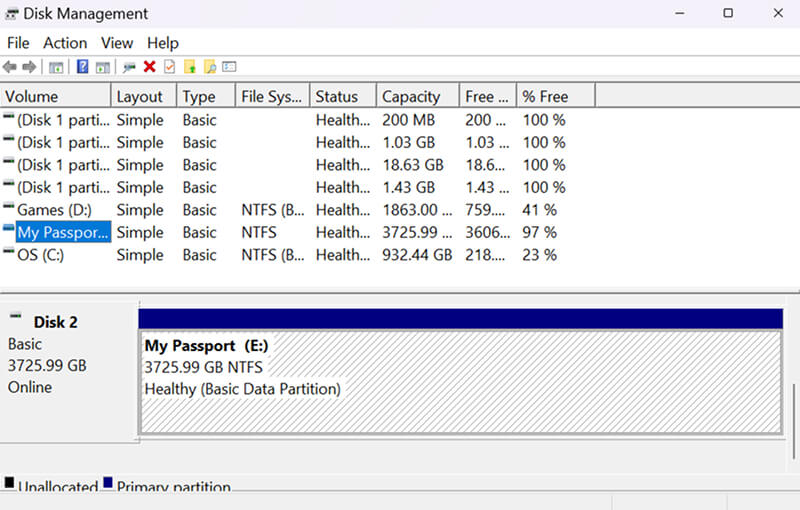
- Search for the external drive in the bottom pane.
- Note the status of the disk.
Not in Disk Management at all? Proceed to Device Manager.
To check your external HDD in Device Manager:
- Right-click the Start icon and choose Device Manager.
- Browse the Disk drives and Universal Serial Bus controller categories.
Not visible in Device Manager either? Move on to the BIOS.
External Hard Drive Not Detected in BIOS
The BIOS (also known as UEFI in modern PCs) detects hardware before Windows even boots. Checking the BIOS could help diagnose the problem.
Step 4: Fix External Hard Drive Not Showing Up in Windows
The following methods for fixing an undetected external drive are ranked by their safety, likelihood, and effectiveness.
Each process applies to both Windows 11 and 10.
Disk Management reports each drive's status in its bottom pane.
Here’s what each status in Disk Management means:
Windows may ask you to initialize or format the device. Always cancel these prompts.
Initializing the disk will write a new partition table over the old one. Formatting the drive will replace the original file system, leaving your data stranded in the disk’s free space.
Most of these statuses describe severely damaged external drives.
Thankfully, an SSD or hard drive recovery expert can often restore data on a failed external device using specialized tools and techniques.
When to do: Your external device has no drive letter in Disk Management.
To add or change a drive letter in Disk Management:
- Right-click the Start icon in the Windows taskbar.
- Open Disk Management.
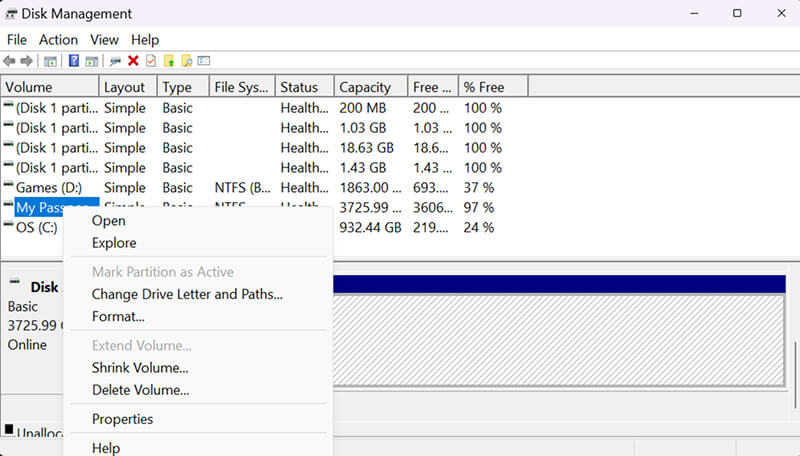
- Right-click your external drive and select Change Drive Letter and Paths.
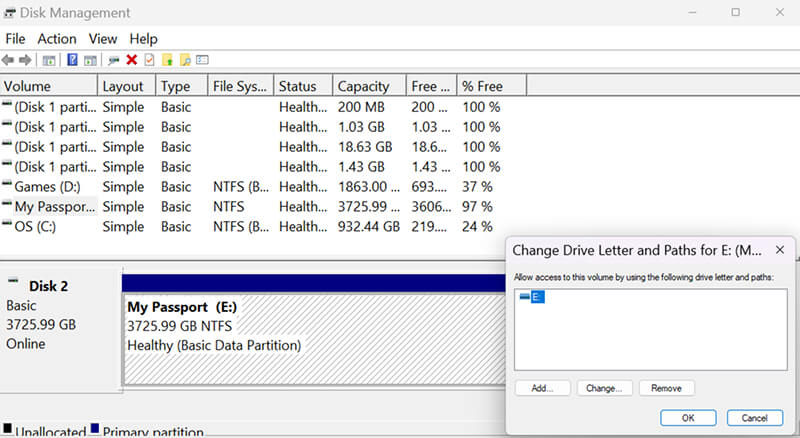
- Choose Add or Change.
- Assign a new drive letter to your disk.
- Click OK to confirm.
Your external hard drive should appear in File Explorer once finished.
When to do: Your portable hard drive shows a warning icon in Device Manager.
To reinstall disk drivers in Device Manager:
- Right-click the Start icon in the Windows taskbar.
- Open Device Manager.
- Expand the Disk drives section.
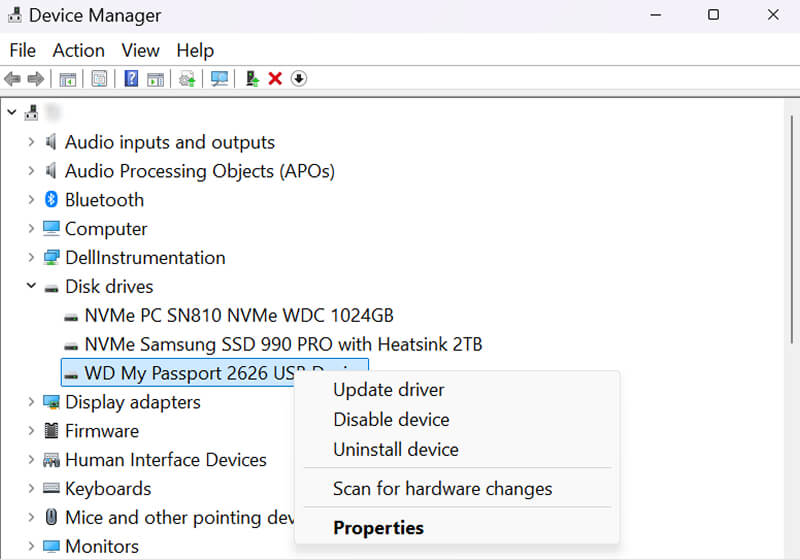
- Right-click your external drive and select Uninstall device.
- Disconnect the drive from the USB port.
- Plug your drive back into the PC after 10 seconds.
Windows will reinstall the driver when you reconnect the device.
Reinstall USB Controllers in Device Manager (Safe)
When to do: You keep getting “USB device not recognized” error messages or a USB Root Hub displays a yellow triangle in Device Manager.
To reinstall USB controllers in Device Manager:
- Right-click the Start icon in the Windows taskbar.
- Open Device Manager.
- Scroll down to the Universal Serial Bus controllers category.
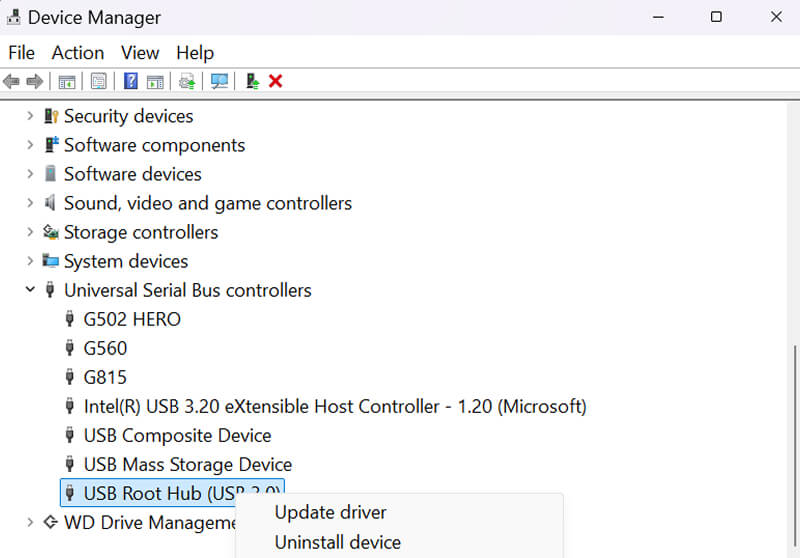
- Right-click the USB Root Hubs and select Uninstall device.
- Restart your computer.
After rebooting, Windows will reinstall the drivers that manage USB devices.
Disable USB Selective Suspend in Control Panel (Safe)
When to do: You have an external drive plugged into a laptop running on battery power that keeps disconnecting.
To turn off USB selective suspend settings in the Control Panel:
- Type Control Panel into the Windows search bar.
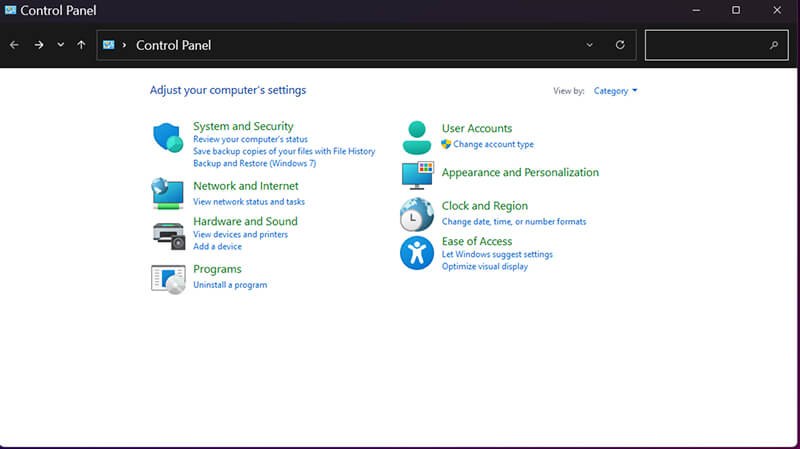
- Choose System and Security.
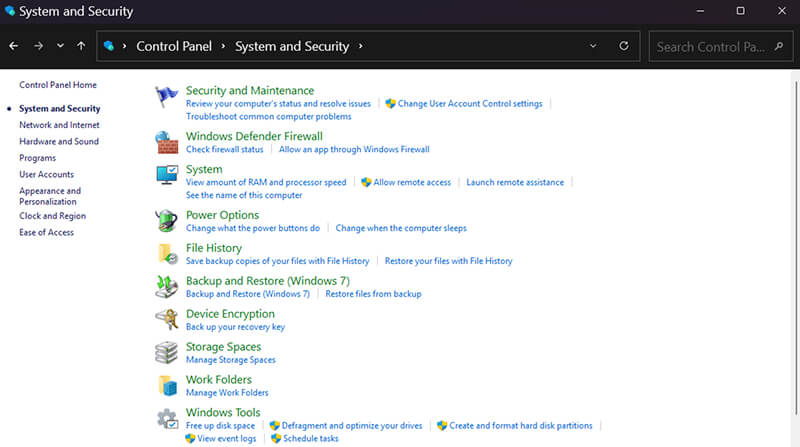
- Select Power Options.
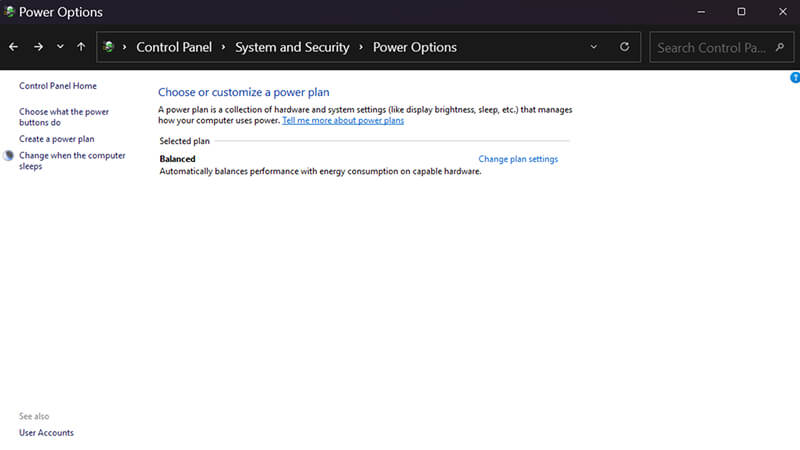
- Click Change plan settings.
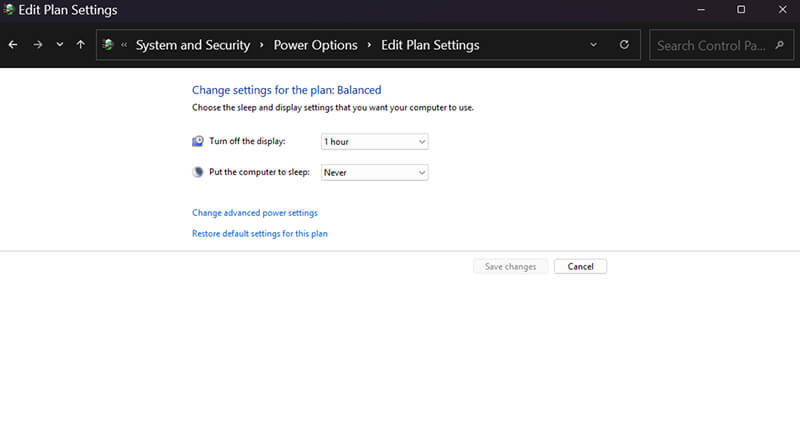
- Select Change advanced power settings.
- Choose USB settings.
- Set the USB selective suspend setting to Disabled.
If USB settings like selective suspend aren’t displayed in the Control Panel, then your computer doesn’t allow changes.
When to do: Your external drive isn’t visible in File Explorer, Disk Management, or Device Manager.
To enter the BIOS in Windows 10 or 11:
- Open the Start menu.
- Click the Power icon.
- Hold the Shift key and select Restart.
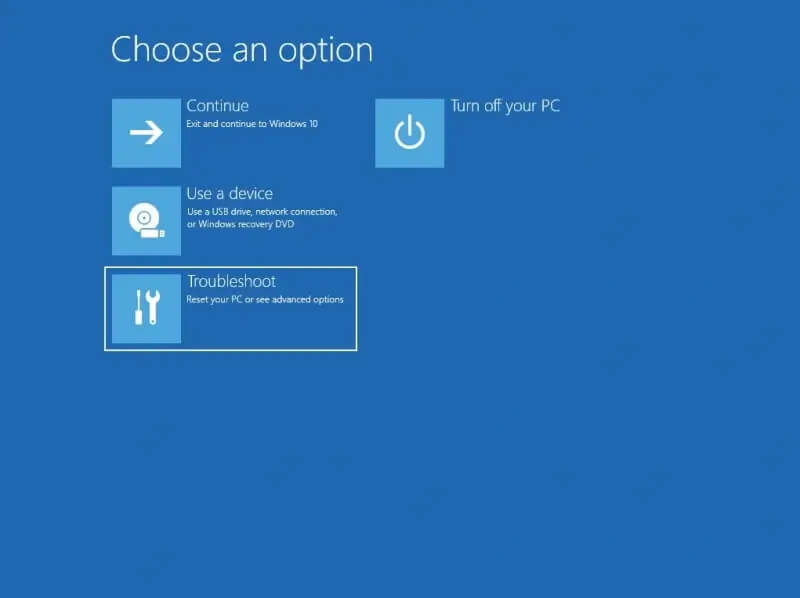
- Choose Troubleshoot after the PC restarts.
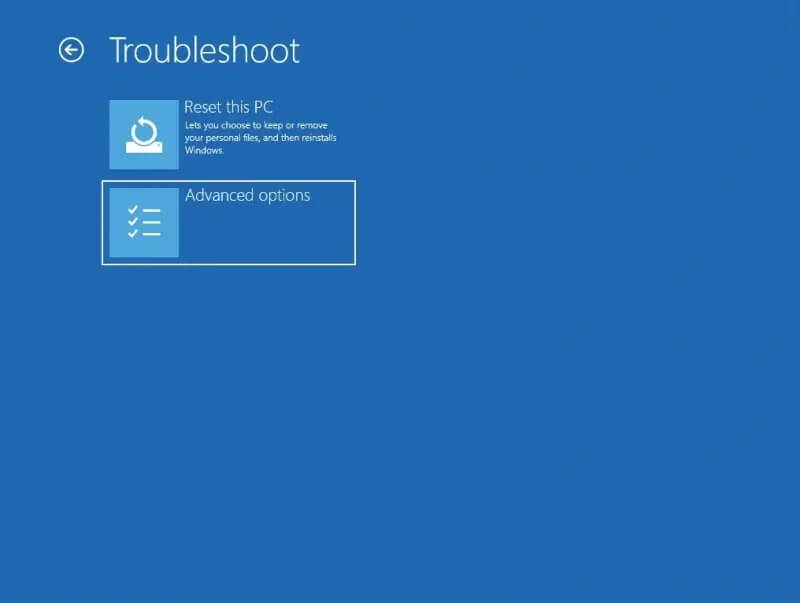
- Click Advanced options.
- Select UEFI Firmware Settings.
- Click Restart.
Your system will now load into the BIOS. Check whether your PC detects the external drive model at the hardware level.
To check your BIOS settings:
- Search the boot menu and storage section for your model.
- Confirm that USB ports and USB storage are enabled.
- Exit without saving changes.
The storage device itself might have failed if it doesn’t appear in the BIOS.
Run CHKDSK in Command Prompt (Caution)
When to do: Your external device displays a drive letter in Command Prompt, shows no signs of failure (like strange sounds or frequent disconnections), and contains no essential data.
Only run CHKDSK as a long-shot solution when you prioritize possibly saving the hardware over the stored data. CHKDSK may repair a corrupted file system by overwriting it and moving data to a healthy sector.
To search for your external drive in Command Prompt:
- Type CMD into the Windows search bar.
- Right-click Command Prompt in the results.
- Choose Run as administrator.
- Type fsutil fsinfo drives and then press Enter to see connected disks.
- Find the volume label that matches your external device.
- Type chkdsk X: /f, where X is your drive’s actual identifier.
Don’t force scans if CHKDSK doesn’t work.
What To Do If Your External Hard Drive Still Does Not Show Up
At this point, the external hard drive is most likely dead.
If you have a backup, then replacing the device is probably your main concern. Check whether the product was under warranty. You can also browse our external hard drive buyer's guide for recommendations.
If you didn’t have a backup of those files, then data recovery is an option. A disk that still doesn’t show up in Windows often requires hard drive repair. A skilled engineer can address external drives with broken heads, scratched platters, failed printed circuit boards (PCBs), or damaged firmware.
Our standard service offers free quotes with a fixed price and no obligation. This lets you get all the details for your case and make an informed decision.
Mistakes That Make Data Recovery More Difficult
Following the wrong advice could be very costly.
Running Data Recovery Software
Data recovery software is a convenient tool for restoring deleted files or repairing minor corruption. It is much less ideal for fixing an external drive with detection issues.
For starters, Windows must recognize the device for the software to work. Moreover, many of these programs cannot resolve complex logical errors, such as a RAW file system. In addition, a deep scan could finish off a struggling drive.
The benefits of running file recovery software are limited.
Removing the External Drive From USB Enclosure
Online tips suggest removing the external drive from its enclosure and connecting it directly to the PC.
However, shucking an external hard drive can backfire. Some models lack a standard connector. Other portable drives automatically encrypt data on the USB board, even without a passcode.
With the original board, encrypted data recovery is possible. Without it, your data is gone forever.
Recover Data From an External Hard Drive That Isn’t Showing Up
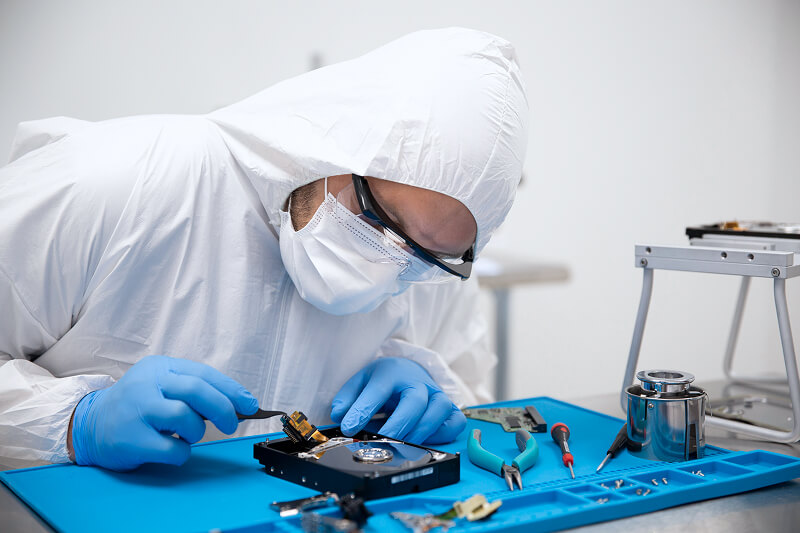
Secure Data Recovery has retrieved billions of files from thousands of failed hard drives since 2007. Our external drive data recovery experts have seen it all in that time. We use highly advanced hardware and software to obtain low-level access and recover data from an unrecognized external hard drive.
Trust the service with leading certifications and a risk-free data recovery process. Featuring a No Data, No Recovery Fee guarantee.
Call us at 800-388-1266 or fill out our online form to get a free quote and start your case today.
Frequently Asked Questions
Why does my external hard drive show up in Disk Management but not File Explorer?
A device that shows up in Disk Management but not File Explorer typically has a missing drive letter or damaged file system. You can assign or change a drive letter within Disk Management. Don’t format an external drive with an unusual status if you need to recover data on the disk.
Why does my external hard drive show up in Device Manager but not Disk Management?
An external drive that appears in Device Manager indicates that Windows detects the hardware but can’t access the storage. Uninstall the disk driver and USB controller. Windows will reinstall a new driver on restart.
Should I initialize a disk that’s labeled Unknown, Not Initialized?
No. Choosing to initialize an external drive that was previously working will overwrite its partition table. Only initialize a brand-new, empty device.
What should I do if Windows gives me a “You need to format the disk” prompt?
Click cancel. Windows asks you to format the external drive because it can’t read the file system. However, reformatting the drive will erase data stored on the disk. Wait to recover important files before formatting.
Why does Disk Management show the wrong size or 0 bytes?
A failing external hard drive frequently fails to report its correct storage capacity. Don’t initialize or format a device that shows 0 bytes. Contact a data recovery service if you have critical files on the disk.
Why did my external hard drive disappear after a Windows Update?
Sometimes, an update can replace drivers that allow hardware and software to communicate. Reinstalling drivers will often restore the connection between a computer and an external hard drive. If the drive isn’t visible on a second PC, the issue is probably with the disk itself.

Timothy Burlee

Timothy Burlee is a content writer for Secure Data Recovery Services. He specializes in various topics in the data industry, including data recovery technology, storage devices, and digital forensics. Throughout his career, he has covered complex concepts and provided accessible solutions for users. Before joining Secure Data, he worked as a freelance technical writer.





.png)
